How to use a teleprompter with Zoom
Put the script as close to your webcam as you can — a narrow window at the top-middle of the screen, or a phone propped right under an external camera — and scroll it slowly enough to look up between sentences. Zoom has no built-in teleprompter for meetings, so the prompter is a separate window, and when you share, you share a single app window instead of your whole screen so the script stays private. Then read less than you think: key lines, not every word.
Updated
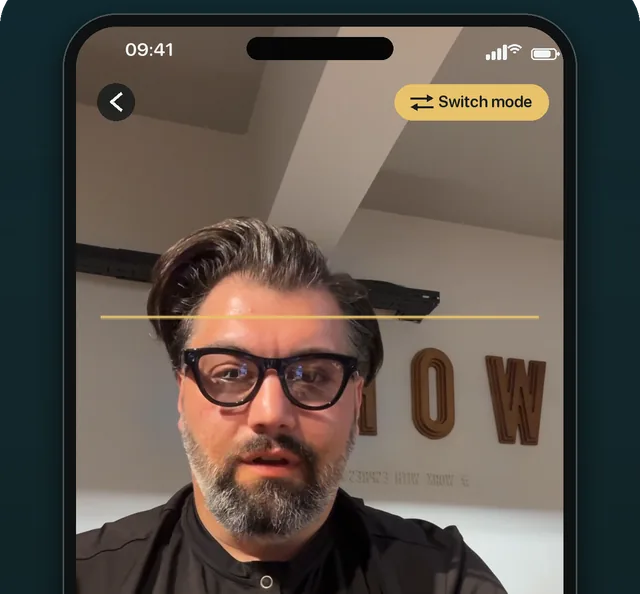
For the window-by-window setup, use the free teleprompter for Zoom. On a phone or iPad, OwlPrompter Pro’s eye-contact mode holds the scroll while you look away.
Why reading shows on a call
People judge eye contact on video by where your eyes point compared with the lens, not the screen. The farther the words are from the camera, the more your eyes visibly aim somewhere else. A script in the middle of a laptop screen looks like you are reading your keyboard; the same script in a strip just under the webcam is much harder to spot.
Distance from the screen helps as well. Sit back, make the text a little larger, and the angle your eyes move through gets smaller.
Three ways to set it up
-
A window under the webcam
The simplest setup for a laptop: a browser prompter in a wide, short window at the top-middle of the screen, reading line near the top. The teleprompter for Zoom page walks through it with the tool on the page.
-
A phone under an external camera
If you use a webcam on top of a monitor, a phone running a teleprompter app can sit right under it, closer to the lens than any window on the monitor below.
-
A teleprompter glass over the camera
A beam-splitter rig reflects the text onto glass in front of the lens, so you read straight through the camera. The text has to be mirrored to read correctly in the glass; the online teleprompter has a Mirror option.
Keep the script private
If you share anything during the meeting, share a specific application window rather than your entire screen. Zoom’s own guide to sharing your screen describes choosing either the entire screen or specific application windows.
Close the prompter before you share your whole screen for a demo, and reopen it afterwards. It takes seconds and removes the risk entirely.
Pace a live conversation
- Pause the scroll whenever someone else speaks, and restart it when it is your turn. In the online teleprompter, Space does both without leaving the keyboard.
- Script the parts where precision matters — an opening, a key number, a closing ask — and use bullet points for everything that depends on how the meeting goes.
- Slow the scroll down more than you would for a recording. On a call you look up, react and nod; a script that keeps moving pulls you back to it.
When to put the script down
Questions, disagreements and small talk should never be read. The moment the conversation leaves the script, look at the people rather than the words; the prompter is there for the moments you planned, not for all of them.
If you are recording a presentation rather than talking to people live, see how to use a teleprompter for a presentation.
Questions
Does Zoom have a teleprompter?
Not for meetings: Zoom’s help center does not document one (checked September 2026). Use a separate prompter window placed just below your webcam.
Can people tell I am reading?
Less the closer the words are to the lens and the narrower the text column. Sitting farther back, reading in short phrases and looking at the lens at the end of each sentence hide most of the rest.
Should I read from a second monitor?
Only if the camera is on that monitor. Reading from one screen while the camera sits on another turns your eyes sideways for the whole call.
Sources
- Zoom Support — Sharing your screen or desktop on Zoom (checked 14 September 2026)