How to use a teleprompter for a presentation
For a recorded presentation, use PowerPoint’s Record feature and switch to Teleprompter view, which shows your notes for each slide above the slide preview so you can read while facing the camera. For a live talk, put the script on a tablet or phone at eye level on the lectern and control it with a Bluetooth remote or keyboard, or present from a laptop and read your notes in Presenter view. Either way, script the opening and closing in full and use bullet points for the middle.
Updated
Recorded presentations: PowerPoint’s Teleprompter view
Microsoft’s guide to recording your presentation describes Teleprompter view as showing your notes for the current slide above the slide preview, so you can read them while keeping eye contact in the recorded video, with an auto-scroll feature. Microsoft lists it for PowerPoint for Microsoft 365 on Windows and Mac, and PowerPoint 2016, 2019, 2021 and 2024.
-
Write your script in the speaker notes
Put each slide’s script in that slide’s notes. Teleprompter view shows the notes of the slide you are on, so the script changes as you advance.
-
Start recording and switch the view
Open Record, then use the Views menu in the lower right of the recording window to switch to Teleprompter.
-
Keep the notes short per slide
A slide’s worth of notes should fit near the top of the view, close to the camera. If you are scrolling a long way on one slide, split the slide.
Live talks: a tablet on the lectern
-
Import the script
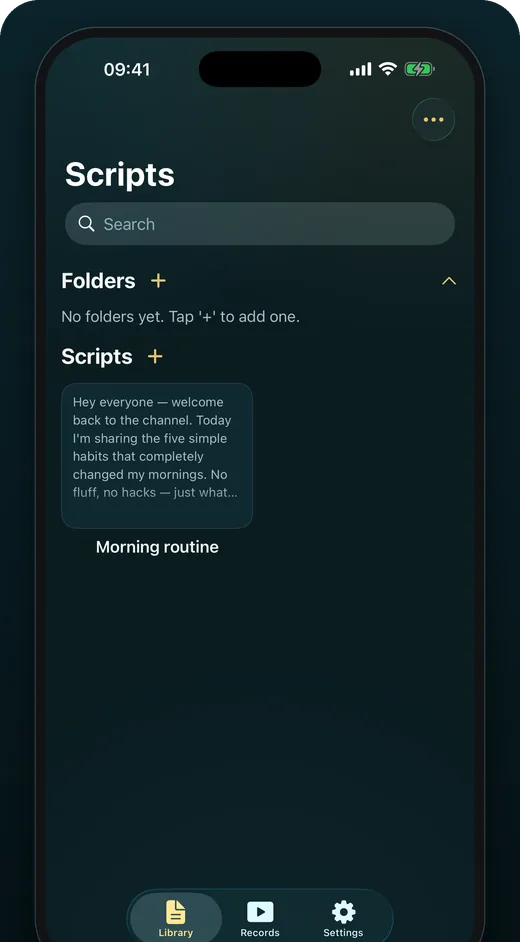
Import your document into a teleprompter app on a tablet or phone. OwlPrompter takes PDF, DOCX, TXT and RTF, free, and keeps the file on the device.
-
Set it up for distance
Use large text and wide line spacing; you will be glancing down from a standing position, not reading at arm’s length.
-
Control it without touching it
A Bluetooth remote or keyboard lets you play, pause and change speed from your hand, so you never lean over the lectern mid-sentence. With Pro, OwlPrompter’s voice scroll follows what you say instead.
-
Mark the slide changes
Add [next slide] cues in square brackets where you advance. In OwlPrompter they show faintly and are skipped by voice scroll.
Presenting from a laptop: Presenter view
If the slides run from your laptop to a projector, PowerPoint’s Presenter view shows your notes on your screen while the audience sees only the slides; Microsoft covers it in start the presentation and see your notes in Presenter view. Keep the notes to key sentences: you will be glancing at a laptop screen, not reading from it.
How much of the talk to write
- Script the first minute word for word. Nerves peak at the start, and a strong opening settles you.
- Script the close word for word too, so you end on the line you chose rather than trailing off.
- Use bullet points for the middle, where you know the material and where questions may change the order.
- Script exact figures, names and quotes, so you never paraphrase something that has to be precise.
Rehearse against the clock
A 20-minute slot at a normal pace of around 140 words per minute is about 2,800 words spoken, and you should leave time for applause, slides and questions. The speech timer turns a draft into minutes at your pace. Rehearse standing up, with the remote in your hand, at least once.
Questions
Does PowerPoint have a teleprompter?
Yes, for recording: Teleprompter view in PowerPoint’s Record feature shows your notes above the slide preview, with auto-scroll. Microsoft lists it for Microsoft 365 on Windows and Mac and for PowerPoint 2016 through 2024.
Can I use a teleprompter for a live speech?
Yes. A tablet or phone at eye level on the lectern, with a remote or voice-controlled scrolling, works in any room and needs no special hardware.
How do I scroll the script hands-free?
Use a Bluetooth remote or keyboard, or an app that scrolls to your voice. OwlPrompter supports remotes and keyboards on every plan; voice scroll is part of Pro.
Sources
- Microsoft Support — Record your presentation (checked 14 September 2026)
- Microsoft Support — Start the presentation and see your notes in Presenter view (checked 14 September 2026)