How to use a teleprompter on your phone
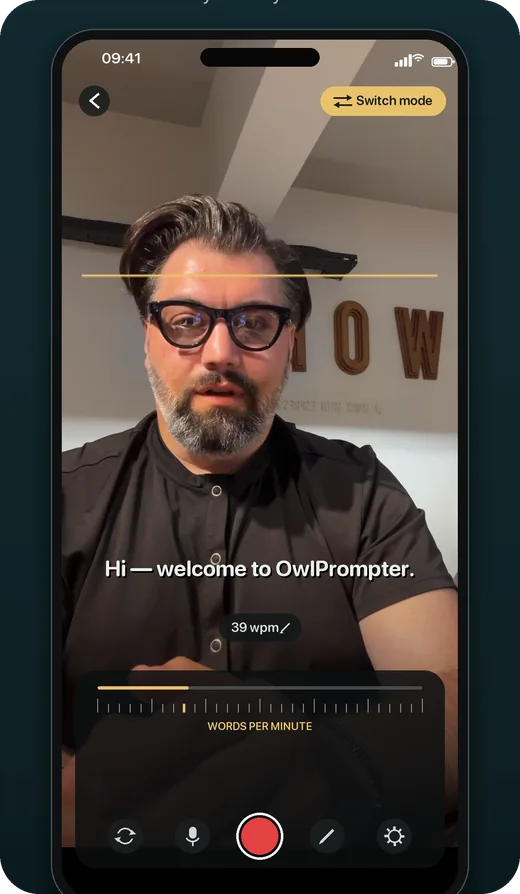
Install a teleprompter app, paste or import your script, and record from the prompter screen so the words sit right under the front camera. Start with a slow scroll and big text, hold the phone at eye level about an arm’s length away, and do one practice read before the real take. The phone does both jobs, so you need no rig, no second screen and no one to scroll for you.
Updated
Set up the phone
-
Put the lens at eye level
Use a small tripod or a stack of books so the camera is level with your eyes. Held low, a phone looks up at you; held high, it looks down on you. An arm’s length away keeps the text readable and your eye movement small.
-
Film with the front camera
The front camera sits just above the screen, so the words and the lens are a couple of centimetres apart. Use the back camera only when someone else is holding the phone or it sits behind a teleprompter glass.
-
Light your face, not the screen
Face a window or a lamp. Turn the screen up only as far as you need to read it: a bright phone in a dark room lights your face blue.
-
Silence notifications
Turn on Do Not Disturb or Focus. A banner that slides over the script mid-sentence is the most common reason for a second take.
Get the script onto the phone
Paste it, type it, or import the document you already have. In OwlPrompter, PDF, DOCX, TXT and RTF import is free, there is no account, and the file stays on the phone.
Format it for reading rather than for print: short lines, a blank line wherever you breathe, and directions in [square brackets] so you see them but never say them. The teleprompter script template shows the format, and the speech timer tells you how long the script will run before you record.
Pick a speed, then fix it on the second take
Timed scrolling moves the text at a words-per-minute you choose. Start a little below your normal talking speed and adjust after the first read: if you keep catching up with the bottom of the text, speed up; if you are still reading the line above the highlight, slow down. OwlPrompter’s range runs from 20 to 300 words per minute.
If a fixed speed keeps fighting you — you pause to think and the text runs away — that is the job voice scroll does. With Pro, OwlPrompter listens on the phone and moves the script as you say the words, and waits when you stop.
Record the take
-
Do one dry run
Read the whole script once without recording. You will find the sentences that trip you up, and you can fix them before they cost you a take.
-
Record from the prompter
Start recording from the prompter screen so the words stay beside the lens the whole time. Leave a second of silence before your first word; it is easier to trim than a clipped opening.
-
Watch the first ten seconds back
Look only at your eyes. If they sweep left and right, narrow the text column or make the text smaller and move the phone a little farther away. OwlPrompter’s Delivery Score, free after every take, adds pace, pauses, filler words and eye contact.
When it still looks like reading
- Eyes drifting down: move the reading position to the top of the screen, right under the camera.
- Losing your place after a glance at notes: with Pro, OwlPrompter’s eye-contact mode holds the scroll while you look away.
- Sounding flat rather than looking wrong: see how to read a script without sounding scripted.
- A long script that never gets finished: split it into takes of a minute or two and join them in your editor.
Questions
Can I read a teleprompter and record video on the same phone?
Yes. Teleprompter apps such as OwlPrompter record from the prompter screen, so the script sits next to the front camera while you film and no second device is needed.
Is there a free teleprompter app without a watermark?
OwlPrompter’s free tier includes scrolling, recording with filters, document import and a Delivery Score for up to three scripts, and it puts no watermark on your recordings.
Does it work the same on iPhone and Android?
The method is the same. OwlPrompter runs on iPhone and iPad with iOS 18 or later and on Android 8.0 or later, and there is a Mac app for macOS 15 or later.