How to use a teleprompter with CapCut
CapCut has its own teleprompter, but only in the CapCut mobile app for iPhone and Android, and only while recording: open the recording screen, tap the Teleprompter icon, enter your script and record with the text scrolling over the camera view. CapCut’s help center says the teleprompter is not supported in CapCut Desktop or on the web. On a computer, read from a separate prompter while you record, then import the video into CapCut to edit.
Updated
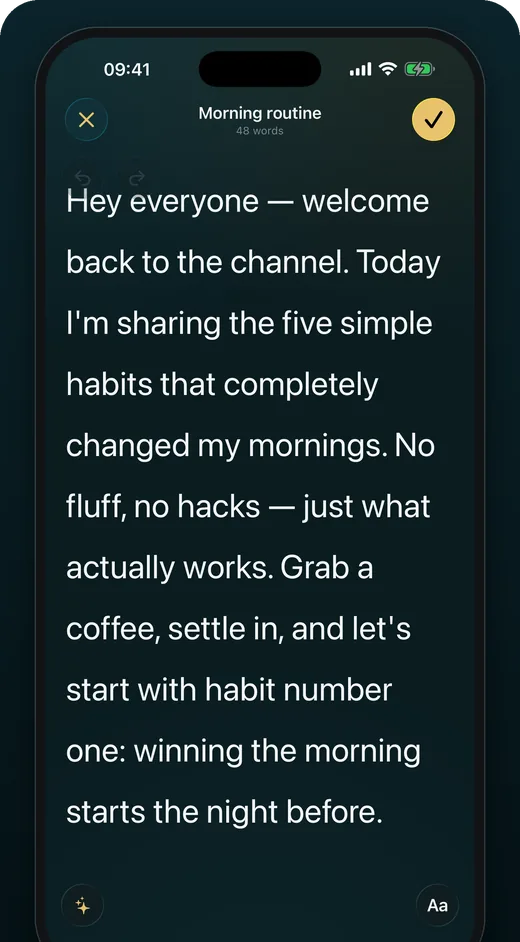
Using CapCut’s teleprompter on your phone
These steps follow CapCut’s own help article (updated 3 February 2026).
-
Open the recording screen
Open the CapCut app and go to recording. The teleprompter is only available while you record video, not while editing.
-
Turn on the teleprompter
Tap the Teleprompter icon — CapCut notes it is usually in the top or bottom toolbar — and enter your script.
-
Record
Start recording; the script scrolls over the camera view. It uses the front camera by default, and the Flip Camera icon in the top-right corner switches to the back camera.
-
Carry on in the editor
When you stop, the clip is already in CapCut, ready to trim and caption.
On CapCut Desktop or Web
CapCut’s help center lists the teleprompter as not supported on CapCut Desktop or the web version. The workaround is to record outside CapCut and bring the file in.
On a laptop, the online teleprompter can record you with the built-in webcam while the script scrolls, and saves the video to your computer; the teleprompter for laptop page covers where to place the words. Then import the file in CapCut Desktop and edit as usual.
CapCut’s teleprompter or a separate app?
CapCut’s teleprompter keeps everything in one app: you read, record and land straight in the editor. For a quick clip, that is hard to beat.
A separate teleprompter app earns its place when scripts become a routine: a library you reuse, documents you import instead of pasting, stage cues that show faintly and never get read, and a take-by-take score for pace, pauses and filler words. You record there, then import the clip into CapCut for the edit.
Getting a clean take, whichever prompter you use
The prompter only helps if the words are close to the lens. Mount the phone at eye level, record with the front camera, and keep your script in short lines so each one reads in a glance. If your eyes still sweep across the screen, the lines are too long.
Write the script before you open the camera. A draft that has been read aloud once is far easier to deliver than one written in the teleprompter box, and the script template gives you a structure for short videos. Record the opening line a few times on its own: it is the part viewers judge first, and the easiest to replace in the edit.
Editing a teleprompter take in CapCut
- Trim the first second or two, where you reach for the record button and settle in.
- Cut restarts: when you stumble, pause and repeat the sentence while recording, then remove the bad attempt in the edit.
- Pick one captioning method. If captions are already burned into the recording, skip CapCut’s captions for that clip, and the other way round.
- Keep the script beside you while editing; it is the fastest way to find a line in a long take.
Questions
Does CapCut Desktop have a teleprompter?
According to CapCut’s help center (updated February 2026), no: the teleprompter is available only in the CapCut mobile app on iOS and Android, during recording.
Can I use the back camera with CapCut’s teleprompter?
Yes. CapCut’s help article says it starts on the front camera and that the Flip Camera icon in the top-right corner switches cameras.
How long should my script be?
At a normal pace of about 140 words per minute, a one-minute video takes roughly 140 words. The speech timer works it out for any length and pace.
Sources
- CapCut Help — How do I flip front/rear camera in Teleprompter? (page updated 3 February 2026, checked 14 September 2026)